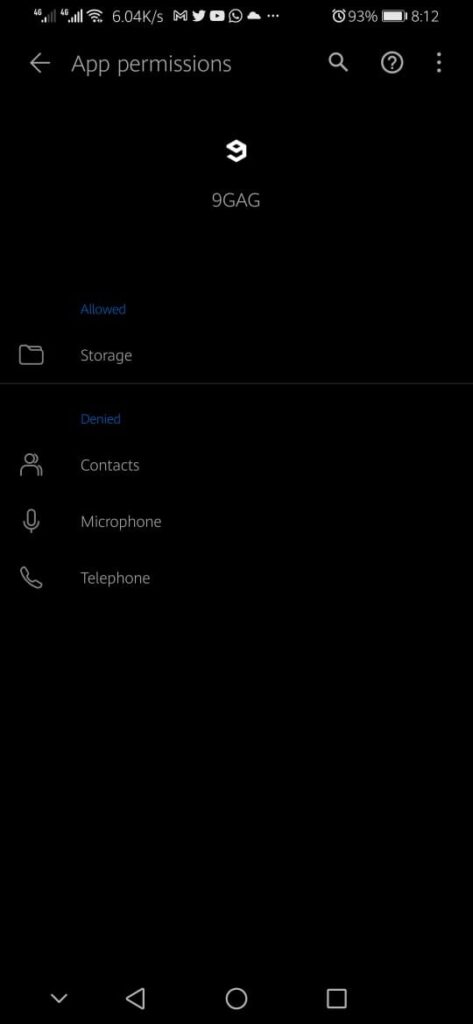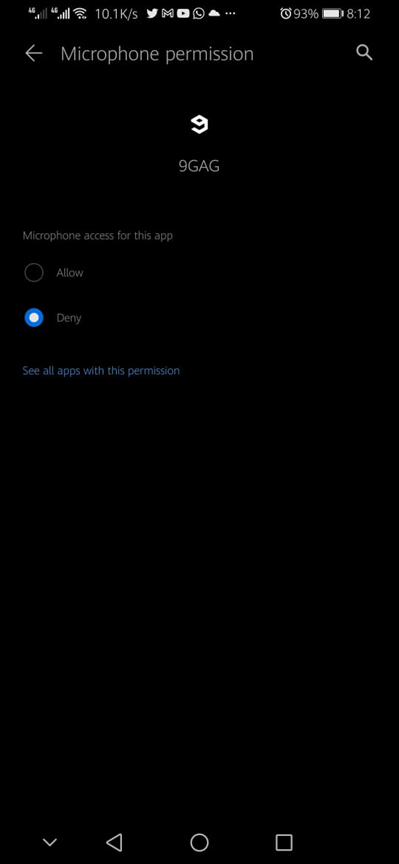
Change app permissions on your Android phone
REMOVING UNWANTED PERMISSIONS ON MY PHONE
Sometimes apps need access so they can function properly. At other times, you could be giving permission for a handful of features you do not even use, or that the app should not need.
Be particularly wary of an app asking for access to features that it does not seem to need. At worst, malicious apps could let cyber criminals steal your information and control device features such as the camera and microphone.
Types of permissions
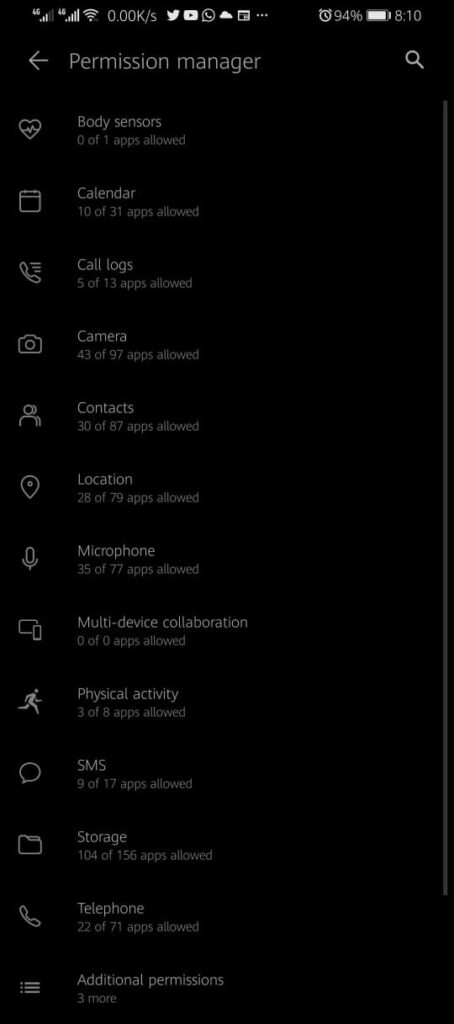
Below is a list of permissions and what they do when turned on for an app.
- Body sensors: Get sensor info about your vital signs.
- Calendar: Use your default calendar.
- Call logs: See and change your call history.
- Camera: Use your camera to take pictures or videos.
- Contacts: See your contacts list.
- Location: Ask to get your device’s location.
- Microphone: Record audio.
- Nearby Bluetooth devices: Apps can discover and connect to nearby devices
- Phone: Make and manage phone calls.
- Physical activity: Get info about your activity like walking, biking, step count, and more.
- SMS: See and send SMS (text) messages.
- Storage: Get photos and other files on your phone.
- Files and media: Use photos, media, and other files on your phone.
Here is how to access your app permissions (these steps may vary depending on which phone you use):
IPHONE USERS
- Open up the Settings app

- Tap the Apps option

3) Tap the app you want to examine
4) Tap Permissions to see everything the app can access
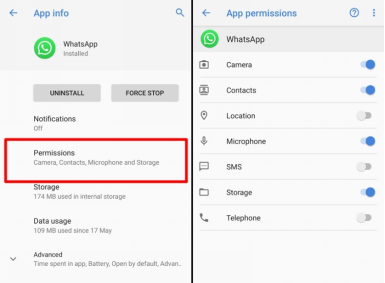
5) With the image above you can turn on, turn off any permission.
ANDROID USERS
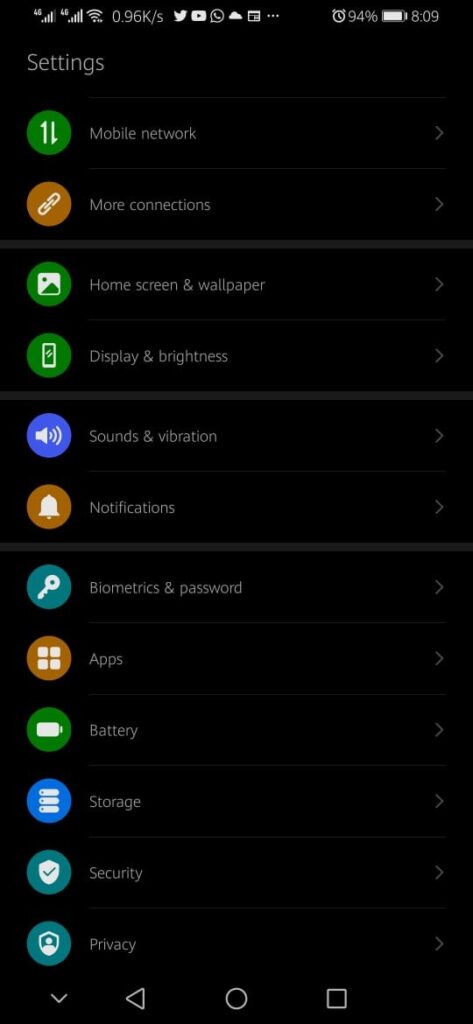
- On your phone, open the Settings app
- Tap Apps & notifications.
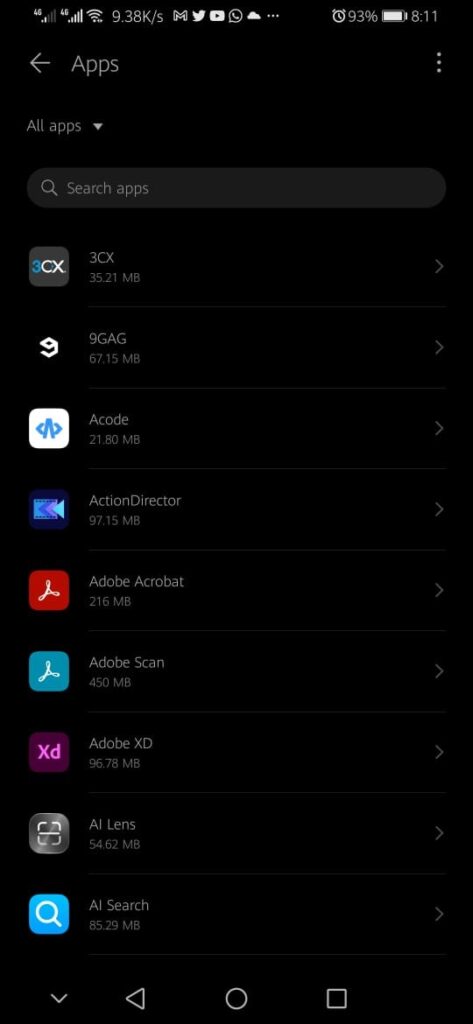
3.Tap the app you want to change. If you can’t find it, first tap See all apps or App info.
4. Tap Permissions.
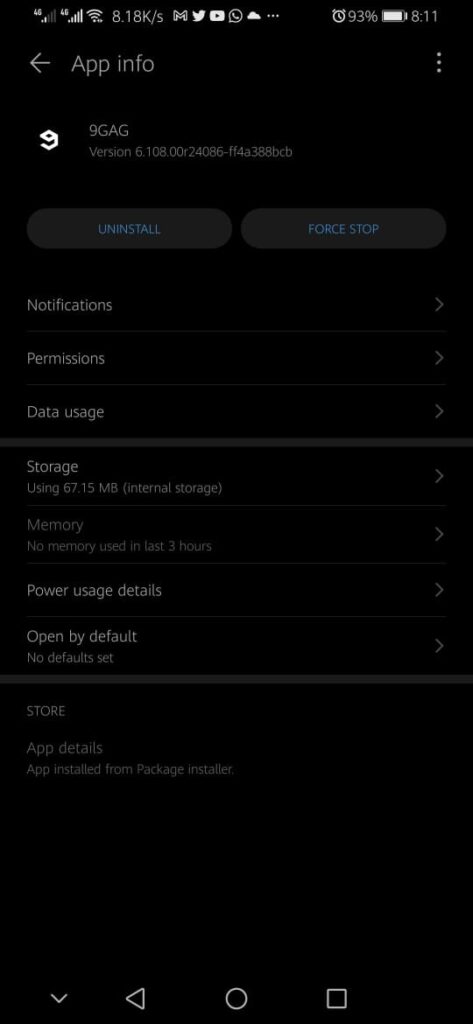
5. Turn on Remove permissions if app isn’t used.