
How to Update Windows 7
How to Update Windows 7
What would you do if your entire digital life—work files, email accounts, social media accounts, and even your purchased music and your family photos—was held for ransom? You have 24 hours to pay $5,000 or lose it all.
It can happen if you don’t keep Windows updated.
Why? Because your computer is more vulnerable when it’s out of date. Operating system updates help keep your computer safe from the latest malware and other threats. But how do these updates work, what triggers them, and how can you modify them?
Windows 7 have made installing updates fast and user-friendly, but updating Windows might seem like a hassle, always popping up at the worst times. Even worse, these updates use valuable system resources during installation and often interfere with your workflow.
Why Operating System Updates Are Important
There are good reasons why Microsoft and other OS developers push for updates, though. Taking the time to perfect your system’s update settings is worth doing for the following reasons:
- Updates reinforce system security. Malware evolves, and your operating system has to keep up. Older versions of Windows may not be supported by Microsoft, increasing your risk of contracting viruses and other malicious programs. Some updates patch security holes, making it harder for cybercriminals to steal your personal information.
- Updates facilitate compatibility with new software. Technology evolves and new software is released every day, and these new programs—especially hardware drivers, like printer software—work better with up-to-date versions of Windows.
- Updates make your computer run faster. Finally, Microsoft occasionally makes improvements to Windows through updates. You might find that your system is more responsive and efficient after an update.
How to Update Windows 7
Windows 7 still maintains a strong share of the market even after the release of Windows 10; many users like the simplicity. The release of Windows 8.1 wasn’t as well received, but both of these versions are still officially supported by Microsoft.
Both versions have similar updating procedures, too, so we’ll be covering them both simultaneously.
How to Begin Updating
- Click on the Start button.
- Click on “Control Panel” on the right-hand side. You should see a window like the one below
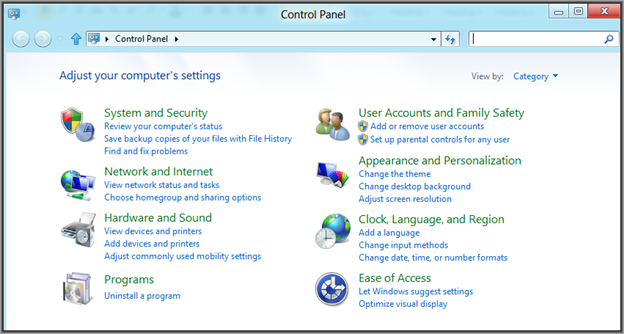
- Click the large, green “System and Security” link.
- Click “Windows Update.”
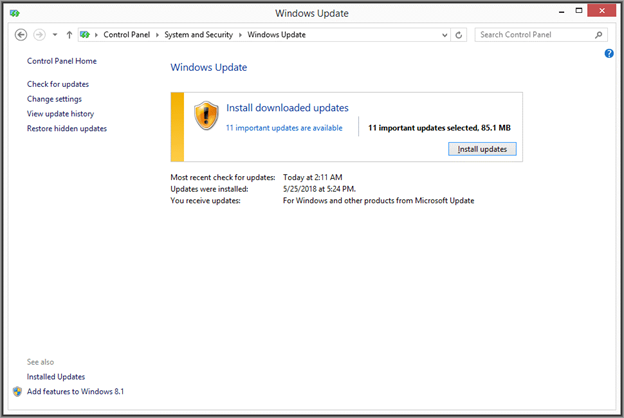
- Click “Check for Updates” on the left-hand sidebar to search for new updates. Your computer must be connected to the Internet for this step.
- Windows Update will either let you know your system is up-to-date or give you a few updates to install. Click “Install updates” if directed.
- Allow the updates to finish. Feel free to use your computer while they are downloading.
- Restart the machine to finish the installation.