
How to Update Windows 10
Microsoft has a “set it and forget it” approach with Windows 10, favoring automatic updates over user control. This has its pros and cons, but thankfully it’s just as reliable as the old system with a little tinkering.
However, Windows 10 is a little more work than that. Here’s how to stay in control of those “timely” updates:
How to Begin Updating
Windows 10 will automatically download and install updates in the background. When a restart is required, Windows will warn you beforehand and let you decide whether to restart immediately or later. Keep in mind that if you postpone the restart too long, Windows will eventually require one.
That being said, you can still manually check for new changes.
- Open the Windows 10 settings menu from the Start button or flag icon in the lower left of the taskbar.
- Click the “Update & Security” icon.
- Click “Windows Update,” which should lead to the following screen.
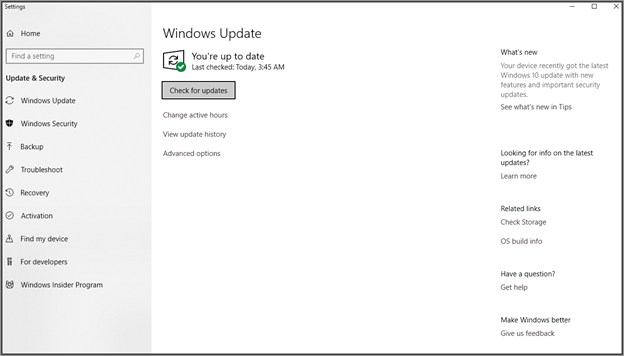
- Click the “Check for updates” button.
and you are done as simple as that.
280 General, Windows, Windows 10
Total 2 Votes:
0
2